Showing posts with label microsoft. Show all posts
Showing posts with label microsoft. Show all posts
Thursday, November 12, 2015
Firefox for Windows 10 revealed !!

Windows 10 promises to be a very successful release for Microsoft’s partners, customers, and business, however the same dark cloud which hovered over Windows 8 will hover over Windows 10. Will developers and business target Windows 10 and develop apps to support the new OS? So far the typical popular Windows devs have already announced plans to support Windows 10, and there have been a few companies like Slack who say they will look into it. Mozilla announced last week Firefox would be supporting Windows 10, which came as no surprise seeming as how they have supported every version of Windows since XP, but now curious Firefox users can get an early peak at their design.
Development for Windows 10 typically involves universal apps which can run across devices; Mozilla has not announced plans to make Firefox a Universal App. So this new version of Firefox will work on Windows 10 PCs like previous versions of Firefox. Primary differentiator with Firefox on Windows 10 so far will be the tweaks to the UI such as sizes and color of different UI elements.
“The design appears familiar because its goal is to provide a smooth transition for Firefox Windows users,” says Chad Weiner, director of product management at Mozilla. “We wanted to make sure that Firefox showed up on Windows 10 as a first-class experience, so we’ve made a lot of subtle tweaks to the look and feel that both sit well in the Windows 10 context and are definitively Firefox. We’re taking visual cues from style changes appearing in Windows 10 and we’re also reducing the overall browser UI footprint to increase space for viewing the Web.”

APPLE'S PROGRAMMING LANGUAGE SWIFT IS NOW OPEN SOURCED !!!!
Apple’s new launches at WWDC 2015 showed off many new features and capabilities of both the new iOS 9 and OS X El Capitan. However, the highlight of the evening was when Craig Federighi announced on the stage today that one of the most powerful coding languages, Swift, would become “Open Source”
Swift 2.0 adds a bunch of features that developers have been asking for, to ensure that apps written in Swift are faster and can do more.
“Open source” means that any developer, anywhere in the world, can contribute new features and updates to a software project — totally for free.

Google’s popular Android mobile OS, for example, is open source, which is how smartphone manufacturers can release devices with versions of Android that are slightly different from each other.
Does this mean other manufacturers will be able to make iOS devices – probably not. However with the code becoming open-source, bug fixes and features would develop faster. Swift becoming Open Source will also allow other operating system manufacturers including Google and Microsoft to utilise the features and apply them to their code if they so choose to.
This will allow Android forks like Cyanogen and MiUi to add enhancements to their performance and capability. However, this will also depend on inclination and need to do so from others.
Microsoft Launches Office 2016 for Mac !!

Microsoft today released the new version of its productivity suite for Mac users with the debut of Office 2016 for Mac. The updated software is first being made available to Office 365 subscribers, the company says – meaning those who have either an Office 365 Home, Personal, Business, Business Premium, E3 or ProPlus subscription. A standalone version will not become available until September, notes Microsoft, and pricing for that option is not yet available.
With an Office 365 subscription, Mac users have a range of pricing plans available depending on their needs. Pricing for home users is $6.99 per month for Office 365 Personal, $9.99 per month for Office 365 Home, and there are also plans available for students who may be able to get Office 2016 for Mac for free or for a significant discount, Microsoft says.
New customers can purchase an Office 365 subscription at office.com/Mac while current customers can instead visit their account page at office.com/myaccount and follow installation instructions.
Office 2016 for Mac has been in preview testing – Microsoft’s form of a beta release – since March of this year. That program led to the company receiving over 100,000 pieces of feedback, it says, and over the course of the test period, Microsoft has updated the software seven times to improve its performance and stability. These updates also included new features like improved Mail Merge in Word, Propose New Time in Outlook and support for External Data Connections in Excel.
The suite, which offers new versions of Word, Excel, PowerPoint, Outlook and OneNote, is now available in 139 countries and 16 languages. It includes the familiar ribbon interface and task panes, as well as features designed for Mac users like Full Screen view, multi-touch gestures, and Retina support. Its integration with the cloud allows users to switch between devices – including PCs, tablets, phones and the web – in order to continue editing or collaborating on files.
The release follows that of Word, Excel and PowerPoint for Android phones two weeks ago, and is just weeks ahead of the forthcoming launch of Office Mobile apps for Windows 10.
Going forward, the updated suite will receive quarterly updates, Microsoft says.
Microsoft rolls out build 10166 !!

Microsoft has released a new build of Windows 10 to Windows Insiders, build 10166 is the latest build being offered and includes the latest bug fixes and enhancements. This build also allows Insiders in the Seattle area to try out the new Microsoft Wi-Fi app, which appeared in a build previously. You can download this new build via Windows Update right now.

Just like 10162, this build is all bug fixes and performance improvements. Microsoft is working hard to get Windows 10 finished and out the door to OEMs, so this isn't too surprising. The update is rolling out now, so if you can't see it in Windows Update yet, give it some time.
Windows 10 Release Date
Microsoft had earlier announced that the consumer version of its newest OS. Keeping up its promise, the software major today announced the release date of its latest Windows iteration. The much-awaited operating system will be available to download on computers and tablets running Windows 7 and 8.1 from July 29th onwards. Windows-running smartphones are expected to receive an update later this year.
Terry Myerson of Microsoft stated in the official blog post –
On July 29, you can get Windows 10 for PCs and tablets by taking advantage of the free upgrade offer, or on a new Windows 10 PC from your favourite retailer. If you purchase a new Windows 8.1 device between now and then, the Windows 10 upgrade will be available to you and many retail stores will upgrade your new device for you.
Recently, the hardware and software giant commented on a blog post stating that Genuine Windows 7 and Windows 8.1 customers will be upgraded to Windows 10 for free and will continue receiving ongoing Windows innovation and security updates for the supported lifetime of that device. On the other hand, customers using pirated softwares have been recommended to purchase a licensed copy.
Microsoft is also sending a notification to genuine Windows users, clicking which, a slide show appears giving a slight glimpse of Windows 10. The new version brings back the Start Menu (that was missing in Windows 8), Continuum, a virtual assistant Cortana, the revamped browser Microsoft Edge that is fast and organised, and many other features. The software will launch in 190 countries.
Microsoft recently confirmed that there will be no Windows 11
Microsoft recently confirmed, that the firm is quitting the revision of Windows operating system and confirmed there will be no Windows 11. The company wanted perfection in the latest Windows as it aims to standardize Windows 10. Microsoft intends to make Windows a service. That means, instead of releasing versions of Windows every couple of years, they will be sending out regular updates to Windows just like Apple’s OS X.
Microsoft Officially Launches Office For Android Phone

Microsoft this morning announced the official launch of Office for Android phone, five weeks after the company rolled out the suite of applications as a preview. Today’s release, which includes Word, Excel and PowerPoint designed for the Android smartphone experience, follows earlier efforts at bringing Office to Android tablets, as well as support for Office on iOS devices, Windows and OS X.
The Office apps offer support for a variety of common tasks, including the ability to review and edit files while on the go, presenting PowerPoint presentations from your phone, and quickly pulling up documents even when they’re stored on competing services like Google Drive, Dropbox or Box. The apps, which will replace the older Office Mobile, require 1 GB of RAM and Android KitKat (4.4.x) or above. Android M is not yet supported.
The apps are free to use provided you have a free Microsoft account, but a number of extra features aimed at power users can be unlocked with an Office 365 subscription.
The apps will also be pre-installed on devices from over 30 OEMs, including Samsung, LG, Sony, and others, the company notes. Many of these devices will arrive in retail stores later in the year.
However, users don’t have to wait for their own handset to come with Office pre-loaded – the apps are now available to the public for download. Word for Android, Excel for Android andPowerPoint for Android are live now on Google Play, and in China, they’re available on a number of alternative app stores, including those from Tencent, Baidu, Xiaomi, and CMCC. The Samsung Galaxy Store also offers others around the world access to download.
According to Microsoft, preview testers ran the Office for Android phone apps on over 1,900 different phone models in 83 countries, which allowed the company to incorporate their feedback into the versions out today. Testers’ feedback not only helped the company troubleshoot bugs, but Microsoft also made adjustments to the user interface and added features, it says. For instance, the Office for Android phone apps now connect to third-party storage services including Google Drive and Box, and Microsoft implemented usability adjustments to make it easier to navigate commands within the apps.
The release represents yet another move by Microsoft to fully embrace its cross-platform strategy when it comes to its software. Office was once tied largely to Windows PCs, but the company today is working to make sure its flagship productivity suite works anywhere its users are – even on competitors’ OS’s. The strategy seems to be succeeding at putting Office in the hands of a large audience – in April of this year, the company said its iOS and Android downloads combined had topped 100 million
9 Supercool Features of Microsoft Windows 10
 |
| #MicrosoftWindows10 |
Last night, Microsoft lifted the veil off the consumer version of its much-anticipated operating system Windows 10. The event saw some amazing offerings that were absent in the business version of Windows 10, launched in September the preceding year. Microsoft announced that its new upgrade would be same on all platforms and would be more user-friendly and impressive that ever before.
We have summed up Top 9 features that make Windows 10 unique-:
1. Start Menu

To start off, Microsoft has added the much-needed tool that was absent from Windows 8 and 8.1 – the Start Menu. People longed to see this on their desktop for past three years, and finally Microsoft has put it back. The new Start menu combines the old-school start icon along with the modern user interface that makes it more comfortable for users to go through.
2. Action Center

Settings have tweaked, to give a cleaner and more understandable look. Windows 10 pushed the fragmented Settings menu and Control Panel out to encompass a unified settings menu called Action Center. Action Center brings together all the frequently used options like Wi-Fi, Bluetooth and more. The refreshed settings shelter all the regular buttons, through which one can instantly switch the Wi-Fi, Bluetooth and other selections on and off.
3. Continuum

Continuum is a highly anticipated addition to the Windows 10. Continuum is just like Apple’s Continuity feature that allows you to switch from PC to mobile or tablet from where you left. The feature is designed specifically for convertible devices, switching almost instantly from a mouse and keyboard to a tablet screen.
4. Notifications Sync

5. Cortana

The special feature that separates Windows 10 from its predecessors is the intelligent personal assistant Cortana. Cortana will serve as a primary search tool that will look for you. Its reminder capabilities are unparalleled. Not only this, Cortana is much more than a simple robot. Through Cortana you can interact with the device making lif very easy on the go.
6. Universal Windows Apps

7. Project Spartan

8. Xbox Live

There is something for hardcore gamers as well. With the new Xbox app, Xbox Live, on Windows 10, gamers can chat with their pals, share browsed video game clips and can record their games as well. The app also enables you to edit videos as per your willing.
9. Improved Design and Interface

Microsoft Windows 10 Official Makes Apps Universal
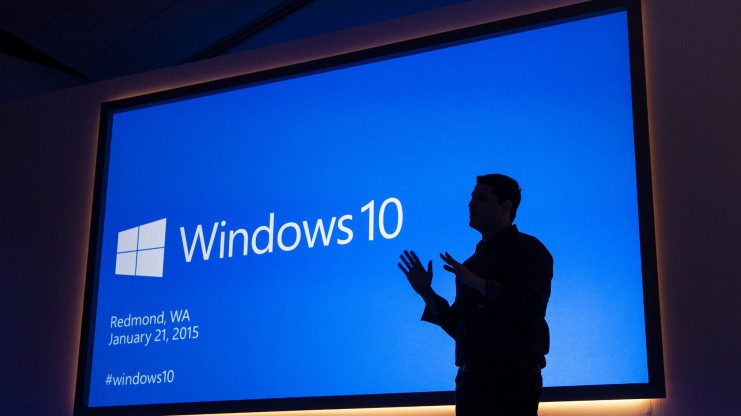
Microsoft has taken the curtain off the next version of the largest used OS aka Windows and just like rumors suggested they skipped the 9. The next version of Windows aka Windows 10.
Microsoft has followed in the lines of Apple and mostly Mobile methods by making an upgrade to Windows 10 free for all Windows 7, Windows 8.1 and Windows Phone 8.1 users. Calling Windows mostly a service and not a product.
 |
| #Windows10 |
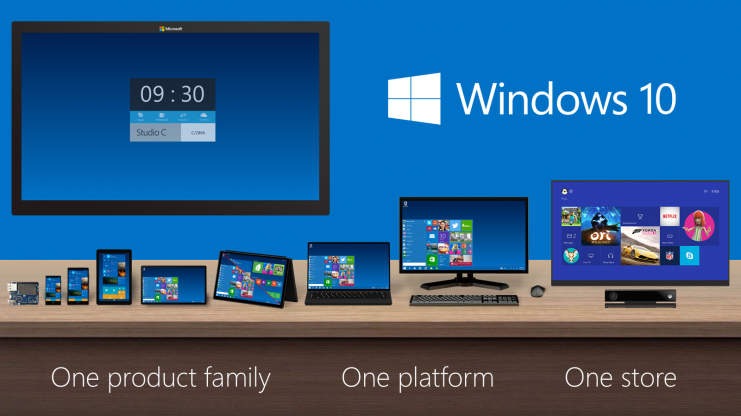
The biggest news that fits into the picture is the seamless integration with Apps across hardware segments, Microsoft has been gunning for this and with Windows 10 it may have become more of a reality.
Now coders will have to make one app which will work across platforms including mobile, tablet and PC.
The new version of Windows will also come with voice assistant “Cortana”. The center of the Cortana experience is housed in the “Notebook”, which should be familiar with those on Windows Phone. Opening this Notebook will show you just what she knows about you.
You can do voice search as well as voice to text typing, which will be a much appreciated add-on.
With previous version of Windows leaving everyone complaining, Microsoft execs are pretty much sure that they have rebuilt their OS from the ground up, and unlike Windows 8 it is not a hasty decision or rollout.
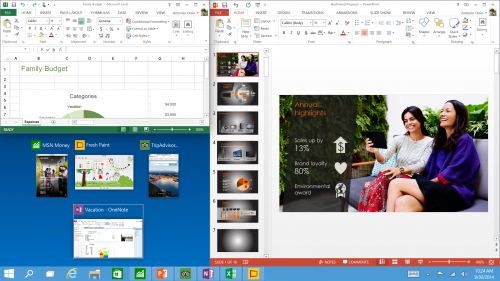
Along with Windows 10 Joe Belfiore demonstrated new versions of Powerpoint and Outlook for a better productivity experience.
Revenge of The Fallen: Nokia is Expected to make a Comeback in 2k15
 |
| #Nokia |
Nokia has been missing in the manufacturing game lately because it has been in Microsoft’s shackles for some time. Nokia’s Devices and Services business were sold to Microsoft which was deemed as Noika’s end. But that wasn’t the case.
 |
| #NokiaN1 |
Nokia surprised us with the announcement of its tablet last year, the Nokia N1. As per the Microsoft contract, the Finnish company is not allowed to manufacture smart devices until 2016. However, the company found a loop hole in the contract and hired Foxconn to manufacture. The Nokia N1 tablet was launched in China which has been successful till now with two batches of the devices already sold out.
The company sold out everything they had, twice in China; the third batch is set to arrive soon. The company is taking baby steps to get grip of their market, with China as their main market. Till now, we have seen only one device from the revived company but it is said that Nokia is working on other smart devices as well.
Nokia C1 had been major news in past with handful of leaks suggesting it to be real. Recently, another Nokia-branded product has been leaked via images. Even though there are no specifications and other hardware details leaked, the leak suggested this laptop will launch along side Nokia C1, sometime this year.
The leaked image shows the alleged Nokia Laptop along with Nokia C1 smartphone and N1 tablet. The Nokia N1 also saw some similar leaks before it was officially launched.
Another Windows build Out !!

Microsoft has released multiple Windows 10 builds this week to users enrolled in the Windows Insiders program, mainly those in the fast ring, with the latest one being the Windows 10 build 10162 yesterday. Earlier today, Microsoft's head of Windows Insider Program, Gabriel Aul announced that the latest build is now also available as an ISO for users who wish to install it through other media devices such as a DVD or a USB drive.

The latest Windows 10 build 10162 offers users with a better reliability, performance, battery life, and compatibility compared to the previous builds. It's also worth mentioning that Microsoft is close to the official launch date for Windows 10 launch, which is set for July 29th for desktop users. The operating system for other platforms is expected to launch in the coming months, possibly September/October for the mobile version.
Microsoft has all the details up on how to download and install the new build using the ISO file. Head over to Microsoft's website to check all the details and the link for download.
Microsoft pushes build 10162 to Slow Ring Insiders !!
General Manager of OSG Data and Fundamentals, Gabe Aul, is announcing a push to Insiders on the Slow Ring update cycle.


As far as notes about build 10162 for Slow Ring Insiders are concerned, Gabe is directing users to the same Windows Blog published for Fast Ring Insiders. There are rumors that the Windows team is gearing up to push a final Windows 10 RTM candidate to partners in the coming week or so.
Perhaps, Slow Ring build 10162 maybe the last build Insiders see for a few weeks.
Xbox Music brings free streaming from OneDrive for iOS and Android !!

Microsoft updated Xbox Music on Windows to play songs stored on OneDrive back in March, and today the company is refreshing its iOS and Android apps with the same feature. While Xbox Music is being renamed to Groove, today’s updates do not include the new branding. However, the new update does bring the ability to use Xbox Music on iOS or Android without a subscription. You can now upload a collection of MP3s to OneDrive and stream them to the mobile apps like a music locker service without having to pay any fees.
You’ll still need an Xbox Music Pass (Groove Music Pass) to stream songs you don’t own, but it makes the app a lot more useful for those without a subscription. You can also download the songs you’ve stored in OneDrive to make them available for offline use. While there’s a number of bug fixes included in both the Android and iOS versions, the iOS client still appears to crash regularly. Microsoft will hopefully address that problem and its Groove branding in a future update soon.
Corning Gorilla Glass 4: May Finally Make Your Phone Drop-Proof
Apple’s plans for a super-durable sapphire iPhone may have fallen flat, but that doesn’t mean your next smartphone can’t be shatter-proof. According to Corning, the latest version of its protective Gorilla Glass should keep your phone intact even if hits the ground face-first.
Gorilla Glass 4 passed Corning’s meter-high drop test about 80 percent of the time. That’s twice as good as Gorilla Glass 3, though it still means your screen could shatter about 20 percent of the time. The company adds that there are no drawbacks to the improved material. It looks just as good as before and is just as resistant to everyday scratches and scrapes.
Gorilla Glass is pretty much the industry standard at this point, finding its way into the latest devices from Samsung, LG, HTC, Motorola and Microsoft. Even Apple uses a strengthened version of the material to protect the iPhone 6 and iPhone 6 Plus. Corning says the improved glass is already shipping to some companies, so it shouldn’t be too long before a new generation of drop-proof smartphones hit the market.
 |
| #GorillaGlass |
Gorilla Glass 4 passed Corning’s meter-high drop test about 80 percent of the time. That’s twice as good as Gorilla Glass 3, though it still means your screen could shatter about 20 percent of the time. The company adds that there are no drawbacks to the improved material. It looks just as good as before and is just as resistant to everyday scratches and scrapes.
“Corning Gorilla Glass has outperformed competing materials, such as soda-lime glass and other strengthened glass, since it was introduced in 2007, and we’re always innovating to push the limits of what glass can do”, said James Steiner, SVP and General Manager at Corning.
Meanwhile, Corning testing charts reveal that the new GG4, at a thickness of 0.4 mm, can withstand higher drops than GG3, which has a thickness of 0.7 mm. This makes the GG4 more durable and apparently thinner than its earlier models.
Gorilla Glass is pretty much the industry standard at this point, finding its way into the latest devices from Samsung, LG, HTC, Motorola and Microsoft. Even Apple uses a strengthened version of the material to protect the iPhone 6 and iPhone 6 Plus. Corning says the improved glass is already shipping to some companies, so it shouldn’t be too long before a new generation of drop-proof smartphones hit the market.
OS X Yosemite: A Step Closer to iOS
PROS
- Tight integration with iOS devices
- Clean new design
- Much-improved Spotlight search
- Safari has a cleaner design, useful privacy features
CONS
- iCloud Drive doesn't include a standalone iOS app
- Can't add new people to a texting conversation unless you start with at least three people
- Yosemite is a modest upgrade for people who don't own an iOS device
SUMMARY


MAIL


OS X Yosemite is a solid update for Mac users, but in order to make the most out of it, you need to also own an iOS device.
LOOK AND FEEL
 |
| #OSYosemite |
OS X Yosemite has been updated with a redesigned interface that refines the look of Mavericks with design cues taken from iOS 7. Much like iOS 7, Yosemite features a "flatter" style that does away with gloss heavily emphasizes translucency.
Menu bars, side bars, and other window elements have taken on translucent designs, allowing more of a user's chosen background to shine through. The dock is now 2D, and many of the buttons, icons, and apps throughout the operating system have been updated with a simpler, "more harmonious" design.
Apple has updated the fonts in OS X Yosemite, refining them to make them more legible and consistent "across the Mac experience." There's a new typeface in app windows, menu bars, and throughout the system, which Apple promises looks "incredible" on the Retina display.
Toolbars, such as those in Safari, have been slimmed down. For example, Safari no longer displays favorites in the menu bar, as Yosemite makes them accessible when clicking in a "smart search" box instead. Streamlining, simplifying and minimizing interface elements seems to be Apple's goal with Yosemite.
Personally, I like the design, but I understand there are some who think the old version was just fine, and didn't need fixing. For what it's worth, I don't really think about it anymore. That's largely because the OS X user experience is fundamentally unchanged; I get around the operating system the same way I always did. So, once I tired of my little game -- looking for design-related Easter eggs (hello, new battery-charging icon!) -- it was business as usual. In fact, now that I've been using Yosemite awhile, I barely even notice the new look. And that's a good thing.
CONTINUITY
I'll talk about Continuity next, since it's one of the most important features of Yosemite, and also one of the few things I didn't get to address in my initial preview. Before I dive in, though, I need to rain on a few people's parades: Although Yosemite itself can run on machines dating back several years (2007, in some cases), the Continuity feature in particular will only work with newer devices. Specifically, you'll need a MacBook Pro, MacBook Air, iMac or Mac mini from 2012 or later. If you have a Mac Pro, it has to be from at least late 2013. If you plan on using AirDrop to share files between your Mac and an iOS device, that iOS device must have a Lightning connector and run iOS 7 or higher. Finally, of course, you'll need to make sure all your devices are signed in with the Apple ID.
PHONE CALLS AND TEXT MESSAGES
Got it? Good. Now, on to the fun stuff. Of all the new Continuity features, the ability to send and receive calls and texts from your Mac is perhaps the flashiest. In either case, you'll need an iPhone running iOS 8 (make that 8.1 for texting). With voice calls, you can get started pretty quickly (just sign into FaceTime on both devices), but for texting, you'll have to go through a one-time setup process. This involves having a six-digit verification code sent to your Mac, which you then enter on your phone. Pretty straightforward.
Once you're set up, initiating a phone call is as easy as clicking on a phone number anywhere in the OS (Maps, contact cards, et cetera). Incoming calls will appear as a notification in the upper-right corner, with options to mute or switch to a video call once you pick up. Also, even if your phone is right next to your computer, both will ring; you'll always have the option of picking up in either place.
It's a similar deal with texts: Incoming messages live in the built-in Messages app on both your computer and your iOS device. To send a text, you can use Messages, obviously, oryou can click on a phone number in Contacts, Calendar or Safari (it's not like with initiating a phone call, where you can click a phone number anywhere in the OS). Finally, you can send and receive SMS/MMS messages regardless of what device your friends are using.
INSTANT HOTSPOT
Also included in Yosemite (and iOS 8.1) is the ability to automatically use your iPhone as a hotspot for your Mac. So long as you're signed in with the same Apple ID, and connected over Bluetooth, Instant Hotspot will make your phone appear in your WiFi network list as just another connection. From there, in that same list, you can see your phone's LTE signal, as well as your remaining battery life.
"OK," you're saying, "but I could have used my iPhone as a hotspot anyway." This is very true. But, there are a couple advantages to doing it this way. For one, Instant Hotspot allows your phone to automatically disconnect when not in use. Also, once your Mac detects that it's connected to the internet via your iPhone, it will delay certain data-intensive tasks, like software updates and Time Machine backups, until you're back on WiFi.
HANDOFF
Handoff is a feature I mentioned earlier, the one that lets you start doing something on one device, and pick it up on another. Maybe you started reading an Engadget story on your iPhone on your commute into work, and want to finish it at the office. Or maybe you looked up something in Maps before leaving for a meeting, and want to take it with you. You get the idea. In any case, if you're picking up on your Mac, you'll see a pop-up notification in the dock, near whatever app it is you're using. So, when I opened up Engadget on an iPhone, for instance, I saw the above notification near the Safari icon on my desktop. It's all pretty self-explanatory, but keep in mind that if you're using multiple iOS devices (say, an iPhone and an iPad), your Mac will only show you one Handoff notification at a time, and it will always be the more recent of the two.
Finally, obvious as it might be, Handoff only works if both devices are turned on. Also, Handoff was originally designed to work with Apple's own apps, including Mail, Safari, Maps, Messages, Reminders, Calendar, Contacts, Notes, Keynote, Numbers and Pages. Thankfully, though, Apple has released an API to developers, which means we'll probably soon see this feature baked into lots of third-party apps like Chrome, Gmail and Mailbox. Handoff is neat, but I hope no one ever feels compelled to abandon their favorite apps for it.
AIRDROP
AirDrop is a feature that debuted three years ago back on OS X Lion, allowing Macs to share files over a peer-to-peer connection, no WiFi required. With Yosemite, though, Apple is extending that feature to include not just Macs, but, you guessed it, iOS devices as well. In addition, your friends can now send you things from AirDrop even when you don't have Finder open, which is also something you couldn't do before.
If you happen to be sending something to yourself (read: to a different device with the same Apple ID), the file will just download automatically. If you really are sharing with a friend, though, you'll see a notification on your Mac, asking if you choose to accept the download. You'll also see whom the download's from, along with a preview of the file -- say, an image thumbnail.
ICLOUD DRIVE
You've heard of Google Drive. And Microsoft OneDrive. Now Apple is introducing iCloud Drive and yes, it's exactly what it sounds like: an online repository for your files, with the option to access them on a variety of different devices. That includes Macs, iPhones, iPads and iPod touches, of course, though Apple also released a Windows desktop client as well. It's such a no-brainer idea, in fact, that I still can't believe Apple didn't already offer a service like this. In fact, though, prior to Yosemite, storing things in iCloud just meant backing up your stuff there; it didn't mean you had a way of retrieving individual files.
As before, Apple offers 5GB of free iCloud storage -- a bit skimpy considering Microsoft and Google each hand out 15 gigs. On the bright side, Apple has lowered the prices on its data plans so that they're now roughly the same price as what you'd pay for extra Google storage: 200GB for $4 and so on. Even then, Google is sometimes the better deal: It offers a terabyte for $10, for instance, whereas Apple charges $20 for the same amount of space.
On the desktop, at least, iCloud Drive is like a mash-up of Dropbox and Finder. Just drag files into the iCloud Drive folder, listed in the left sidebar in Finder. Then, if you felt like it, you could organize the files with tags and subfolders. Easy peasy. It's on the mobile side that iCloud Drive suddenly becomes less intuitive. Right now, at least, Apple doesn't have a standalone Drive app for mobile devices, the way Microsoft and Google do with their respective services. Instead, you have to go into one of Apple's own mobile apps, like Pages, and then open the file as you normally would. Alternatively, you can always go to iCloud.com, but going to a website on your mobile device is hardly a substitute for a proper standalone app.
FAMILY SHARING
While we're on the subject of cloud storage, Yosemite and iOS 8 usher in a new feature called Family Sharing, which lets you share App Store purchases for up to six accounts, even if you have different Apple IDs. (Amazon recently introduced a nearly identical feature on its own Kindle Fire tablets.) In addition to iTunes purchases, you can also share things like photos and family calendars. Lastly, Apple's new "Ask to Buy" feature should go a long way in preventing kids from racking up unwanted App Store bills. I don't have kids myself, but for my friends' sake, I'm very glad Apple added this.
To set up Family Sharing on your Mac, you'll need to go to System Preferences, iCloud and then "Manage Family." Specifically, you'll have to name yourself the organizer, so to speak, as well as designate a stored payment option. This seems a bit redundant, considering you probably already have a credit card attached to your Apple account, but hey: At least this step is quick.
SPOTLIGHT
If you already own a Mac or iPhone, then you're well familiar with Spotlight, the built-in search tool that has, until now, let you search for files, emails and anything else you have stored on your device. With the introduction of both iOS 8 and Yosemite, though, the search tool has gotten quite a bit smarter. Now, when you search Spotlight, you'll see previews for Wikipedia entries, Bing search results, contacts and any iTunes purchases you have on your computer. It can also serve up local search results like movie times and maps, provided you have "Spotlight Suggestions" enabled in system settings. Lastly, the new Spotlight does unit conversions -- things like distance, currency and so on.
In particular, I appreciate how tidy the search results are. Whereas Spotlight used to sit in the menu bar with drop-down results, it now takes the form of a search bar that pops up in the middle of your screen (you can either press the search icon in the menu bar or hit Command-Space bar). The Spotlight bar opens on top of windows, so you don't have to minimize what you're working on. As you start to type, the search tool will offer auto-complete suggestions to make things easier. From there, you can act on certain things from the search results -- open an address in Maps, for example, or click an email address to start composing a message. All told, then, the new search tool is quite useful. My only request: Add the ability to get to specific system settings, like you can in Windows 8.
SAFARI
It's a similar situation with Safari. Apple's built-in web browser now shows search results that mirror Spotlight -- everything from movie times to Wikipedia previews. (Note: For reasons that remain unclear, not every region will have this feature, though the US is, of course, included.) In keeping with Yosemite's new, flat design aesthetic, the layout here is much cleaner, too. Click the URL bar (the "Smart Search Field") to see a pop-up with your favorites. In the toolbar, everything is now arranged in one line (the option to show the side pane used to be one level down). The "Reader mode" button also has a new design -- just one of many small design tweaks you'll find throughout the OS.
Meanwhile, a new tabs view shows tabs from your Mac and iOS device (there's a tabs button for this). My favorite part is that the tabs are stacked in instances where you opened multiple pages from the same site -- it goes a long way in reducing clutter. Additionally, you can close tabs remotely, so long as the remote device is running either Yosemite or iOS 8 (if all you want to do is open remote tabs, you just need iOS 6 or higher, or Mavericks on the desktop side). Finally, Safari's "share" button now shows recent shares. It's also "extensible," which is to say you can add extensions to share via more apps, even if they aren't part of the default sharing menu.
In addition, Apple made a few privacy and performance improvements. For starters, DuckDuckGo is now one of four preset search engines, with Google, Yahoo and Bing being the other three. You can also now open private browsing in a new window, even if you already started a regular browsing session in a different window. (In Mavericks, once you turn on private browsing, you're turning it on for every subsequent window and tab you open.) The private browsing window is also easy to tell apart, with a "private browsing enabled" banner and a lock symbol in the address bar. It's also now easier to specify a time period for clearing your browser history -- specifically, you get the option of "last hour," "today" or "today and yesterday." Speaking of history, by the way, you can see your history for all of your iCloud devices, not just the Mac you happen to be working on. Finally, there's a stronger cookie option: "Allow from current website only," which excludes cookies even from sites you've visited before.
Meanwhile, on the performance side, this is the first version of Safari to support the WebGL standard. In fact, performance overall should be a touch faster, thanks to a new JavaScript engine. Apple also claims this edition is a little gentler on battery life -- you should get up to three more hours of Netflix streaming here than on Chrome or Firefox, or at least that's what Apple says.
MESSAGES
Apple's built-in Messages app has also gotten an upgrade. Basically, it's picked up many of the same features as Messages in iOS 8, which is to say you can now mute, leave or add participants to a conversation. Unfortunately, as I said in my preview, you need to already have at least three people in the conversation to do any of these things. That kind of makes sense for muting and leaving a thread -- you don't wanna just leave someone hanging -- but I don't see why two people having a conversation can't add a third. What if Terrence and I are about to go to the bar and think Edgar should come too? Could happen, right?
Moving on, you can also name individual conversations, if you're so popular that even your SMS list needs organization. Additionally, if your texting partner is using iOS 8 and has elected to share their location, you can view a map inside the Messages app that shows where your friend is -- a useful tool if you're struggling to find each other in a crowded area. Meanwhile, a Camera Roll-type stream now sits on the right side of the Messages app, showing all the photos and videos you and your friends have uploaded to the thread. (Yes, this includes a mix of images from Macs and iOS devices.) As on iOS 8, there's a new "Soundbites" feature allowing you to attach an audio clip up to 100MB. From there, senders and recipients can both choose to either keep the message, or let it expire after two minutes, à la Snapchat. Finally, a new feature in Yosemite allows you to start a screen-sharing session between Macs with someone who you've already conversed with on iMessage.
The Mail app looks the same as it did on the previous version of OS X, but hidden in there are three new features you should know about. The first is Mail Drop, which helps you skirt attachment-size limits by storing large files (up to 5GB) in iCloud instead. It's not even an option you have to look for in the settings; if you try to upload a large-enough file, you'll see a pop-up asking if you'd like to use Mail Drop instead. Assuming you do that, the attachment will be encrypted on Apple's servers, and no, it won't count against your iCloud storage. If the recipient of your message also happens to have a Yosemite machine, the attachment will just download automatically, without the user having to do anything. If your friend doesn't have Yosemite, they can click a download link, which will be available for 30 days.
Meanwhile, Apple also added smarter suggestions in the Mail app's search field. In particular, it now does a better job recognizing typos, and suggests results based on what it thinks you were trying to say. Not a life-changing feature -- it doesn't take long to retype "burgers" when you originally wrote "bugrers" -- but it's certainly nice to have.
Last thing: A new "Markup" feature lets you add shapes and text to email attachments, complete with formatting options like fonts and text colors. Just hover over a PDF or image after you insert it into your draft email, and click on the "Markup" option that'll appear over on the right side. You can also sign documents by either writing with your finger, or using your Mac's iSight camera to photograph your signature on a piece of paper. Meanwhile, if you wanted to really home in on something, there's an option to zoom in on a specific part of the document and crop everything else out.
Finally, you can draw on the document, at which point Markup will attempt to smooth out your scribblings if you happen to make a shape it recognizes. If you dash out a crooked arrow sign, for instance, Apple will give you the option of swapping in a straight, more professional-looking one instead (you can also keep the crooked one, if you prefer).
CALENDAR AND NOTIFICATION CENTER
I saved this section for last because of all the changes in OS X Yosemite, the tweaks to Calendar and Notification Center were perhaps the most minor. In Calendar, the only new thing is a day view, with an inline, full-height inspection pane, where you can see things like a map of your appointment location, the local weather and a list of attendees.
Similarly, the Notification Center now has a "Today" view, which you can customize with widgets from the Mac App Store (calendar, weather, stocks, world clock, reminders, social networking, et cetera). Additionally, Apple released an API to developers, so they can tweak their own apps for the Notification Center too, if they want to. In practice, it functions kind of like the old Dashboard, though you can still go there too, if you're averse to change. Personally, I find the Notification Center is simply easier to access -- you can either click the icon in the upper-right corner of the screen, or swipe in from the right with two fingers.
Known Issues
Many people who have installed OS X Yosemite have been experiencing problems with slow Wi-Fi speeds or continual disconnections. Though a variety of fixes have been proposed, it does not appear that there's a single solution that works for all users, suggesting the issue won't be resolved until Yosemite is updated.
Compatible Macs
OS X Yosemite will run on all Macs that can run OS X Mountain Lion and OS X Mavericks. It requires 2GB of RAM and 8GB of storage space. Mac App Store access (introduced with Snow Leopard) is also required.
OS X Yosemite can be installed on the following Macs: iMac (Mid 2007 or newer), MacBook (Late 2008 Aluminum, or Early 2009 or newer), MacBook Pro (Mid 2007 or newer), MacBook Air (Late 2008 or newer), Mac Mini (Early 2009 or newer), Mac Pro (Early 2008 or newer), Xserve (Early 2009).
WRAP-UP
In theory, Apple's OS X Yosemite update is for everybody. And in a way, it is -- almost anyone can download it for free, so long as they have a Mac that came out sometime in the last five years or so. In reality, though, this release is mainly for people who own an iDevice, whether it's an iPhone, iPad or iPod touch. All of the most compelling features -- Handoff, iMessage integration, shared browser history, the ability to receive calls on your computer -- are reserved specifically for iOS users. For people like me, who own an Android phone and use Microsoft OneDrive for storage, this is a more modest upgrade. That said, even those of you who dabble in multiple OSes will appreciate the flat new design, Spotlight search and improved Safari layout. Just accept the fact that you're not getting as much out of the new operating system as you could be.
Subscribe to:
Posts (Atom)