Showing posts with label google. Show all posts
Showing posts with label google. Show all posts
Thursday, November 12, 2015
APPLE'S PROGRAMMING LANGUAGE SWIFT IS NOW OPEN SOURCED !!!!
Apple’s new launches at WWDC 2015 showed off many new features and capabilities of both the new iOS 9 and OS X El Capitan. However, the highlight of the evening was when Craig Federighi announced on the stage today that one of the most powerful coding languages, Swift, would become “Open Source”
Swift 2.0 adds a bunch of features that developers have been asking for, to ensure that apps written in Swift are faster and can do more.
“Open source” means that any developer, anywhere in the world, can contribute new features and updates to a software project — totally for free.

Google’s popular Android mobile OS, for example, is open source, which is how smartphone manufacturers can release devices with versions of Android that are slightly different from each other.
Does this mean other manufacturers will be able to make iOS devices – probably not. However with the code becoming open-source, bug fixes and features would develop faster. Swift becoming Open Source will also allow other operating system manufacturers including Google and Microsoft to utilise the features and apply them to their code if they so choose to.
This will allow Android forks like Cyanogen and MiUi to add enhancements to their performance and capability. However, this will also depend on inclination and need to do so from others.

Google Now Allowing Project Fi Customers To Check Their Invite Status

Early adopters who signed up for Project Fi, Google’s recently announced initiative to provide its own cellular service, can now keep better tabs on the status of their requested invite thanks to a new online tool Google rolled out this week. Potential Project Fi customers were alerted to the availability of the tool by way of an email which informed them that they could now track the status of their invite via the Project Fi sign-up page.
Unfortunately, for many customers, the new page isn’t yet showing a timeframe.
While a number of users report seeing expected timeframes of “3-4 weeks” or “4-8 weeks,” for example, many others are instead being shown a message that reads “We’re still determining your status. Check back here for updates.” (Not so useful!)
And despite repeated requests from users on Twitter, the support account for Project Fi hasn’t offered an explanation of what having no provided timeframe means, or when those users should expect to see an update.
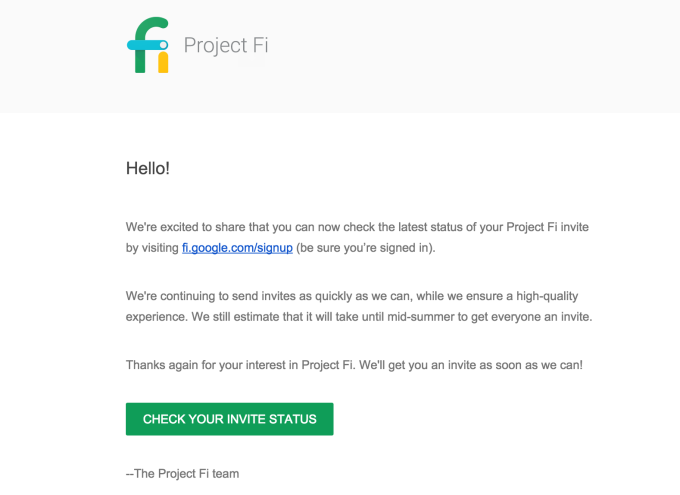
 What’s interesting is that those whose invite status is still undetermined include people who signed up on day one. In other words, invites don’t appear to be rolling out based on who asked first – Google is clearly using some other criteria to determine which invites are being processed. It’s likely that the company is making determinations based on zip code and mobile coverage, as the network involves using a special Project Fi SIM card that allows a Nexus 6 Android smartphone to run on top of Sprint and T-Mobile’s cellular networks.
The company said earlier this spring that Project Fi invites would roll out to everyone by mid-summer, noting then that an online tool to check invite status would soon become available.
Users’ interest in the new network has a lot to do with its affordability. Project Fi is a contract-free MVNO with plans that start at $20 per month for unlimited talk and text, plus Wi-Fi tethering support. You then pay for data as you go at $10 per GB. In addition, users will receive credit for unused data at the end of the month.
The service is also integrated with Google Hangouts, allowing users to place calls from their mobile number on tablets and laptops, as well as from their phone.
Moto’s Next Phone to Have a Solid Build and an Excellent Camera
In the world of mobile handsets, there are very few companies that manufacture phones which are well-built and at the same time, carry high-end specs. The biggest example of this would be the Apple iPhone. Excellent innards mixed with delicate hardware.

Motorola, on the other hand, has a long history of being a firm which produces viably sturdy handsets while keeping the device technologically updated from the software front. Recently, iGyaan got an official tip from the company that their new phone may be similar to their old Motorola Defy.
Released in January 2011, the Motorola Defy could resists water and dust. Its screen was tough and scratch proof, the construction super rigid and environment proof. The phone, at the time, came with a 3.7-inch display, 5MP camera and 1500mAh battery.
Imagine the aesthetics of the Moto Defy and the specifications of today – that’s what Motorola is planning to bring to the table.
This was supported by leaked images and a video of the upcoming what is could possibly be, the Moto X Third Gen, courtesy a Google+ leaker who goes by the name Neo Lee.
The video has been removed on YouTube, but can be viewed here on Google+. Nothing much could be made out from the video, as it simply showed someone scrolling through and reading the specs of the phone. The rumoured phone is expected to have a Snapdragon 410, a 5-inch screen, 1 GB RAM, 8GB storage + microSD expansion, a slightly better 13MP or 16MP rear camera, a 5MP front camera and LTE radio.

On the other hand, the new images reveal a good amount about the upcoming phone. A photo of the rear panel suggests the new smartphone carries forward Motorola’s design language, which includes the dual LED flash. The device is also operating on the latest version of Android (5.1.1 Lollipop). With the new third generation Moto X, Motorola is possibly working towards testing with glass and metal for its device, giving it a solid premium look.
The Moto X (3rd Gen) might have everything that it takes to be the best all-round device we can get from Motorola. With this, the new Motorola smartphone could stand up against the likes of Samsung and Apple.

Microsoft Officially Launches Office For Android Phone

Microsoft this morning announced the official launch of Office for Android phone, five weeks after the company rolled out the suite of applications as a preview. Today’s release, which includes Word, Excel and PowerPoint designed for the Android smartphone experience, follows earlier efforts at bringing Office to Android tablets, as well as support for Office on iOS devices, Windows and OS X.
The Office apps offer support for a variety of common tasks, including the ability to review and edit files while on the go, presenting PowerPoint presentations from your phone, and quickly pulling up documents even when they’re stored on competing services like Google Drive, Dropbox or Box. The apps, which will replace the older Office Mobile, require 1 GB of RAM and Android KitKat (4.4.x) or above. Android M is not yet supported.
The apps are free to use provided you have a free Microsoft account, but a number of extra features aimed at power users can be unlocked with an Office 365 subscription.
The apps will also be pre-installed on devices from over 30 OEMs, including Samsung, LG, Sony, and others, the company notes. Many of these devices will arrive in retail stores later in the year.
However, users don’t have to wait for their own handset to come with Office pre-loaded – the apps are now available to the public for download. Word for Android, Excel for Android andPowerPoint for Android are live now on Google Play, and in China, they’re available on a number of alternative app stores, including those from Tencent, Baidu, Xiaomi, and CMCC. The Samsung Galaxy Store also offers others around the world access to download.
According to Microsoft, preview testers ran the Office for Android phone apps on over 1,900 different phone models in 83 countries, which allowed the company to incorporate their feedback into the versions out today. Testers’ feedback not only helped the company troubleshoot bugs, but Microsoft also made adjustments to the user interface and added features, it says. For instance, the Office for Android phone apps now connect to third-party storage services including Google Drive and Box, and Microsoft implemented usability adjustments to make it easier to navigate commands within the apps.
The release represents yet another move by Microsoft to fully embrace its cross-platform strategy when it comes to its software. Office was once tied largely to Windows PCs, but the company today is working to make sure its flagship productivity suite works anywhere its users are – even on competitors’ OS’s. The strategy seems to be succeeding at putting Office in the hands of a large audience – in April of this year, the company said its iOS and Android downloads combined had topped 100 million
Android 5.0 Lollipop: Google Sweetest Release Yet
 |
| #Android 5.0 Lollipop |
Material Design

There's more white space, especially around text, and there are more transparent touches. There are also animated effects when you interact with the screen, such as ripples of color. It's the first real makeover Android has had in several years
There's more white space, especially around text, and there are more transparent touches. There are also animated effects when you interact with the screen, such as ripples of color. It's the first real makeover Android has had in several years
Notifications
Lollipop also introduces a new notification setup, with notification cards in the middle of the lock screen, similar to iOS and Moto Alerts on Motorola handsets. Each alert appears as a card and you respond to each notification from the lock screen. The same card design appears in the notification drop-down menu that you view by swiping down from the top of the screen.
Google promises that your phone will prioritize notifications that it thinks are important to you, while keeping less important updates hidden away. And you can always tweak certain app notifications individually, as well as adjust how much information is previewed.

There's also the new Heads Up notifications that pop up at the top of the screen, showing you a glimpse of an email, text message or incoming call while you're watching a video or playing a game. You can respond to the notification and then move on, without even needing to open the notification drop-down menu. Or, if you'd rather not deal with it right now, just swipe it up to store it in your notification menu for later.
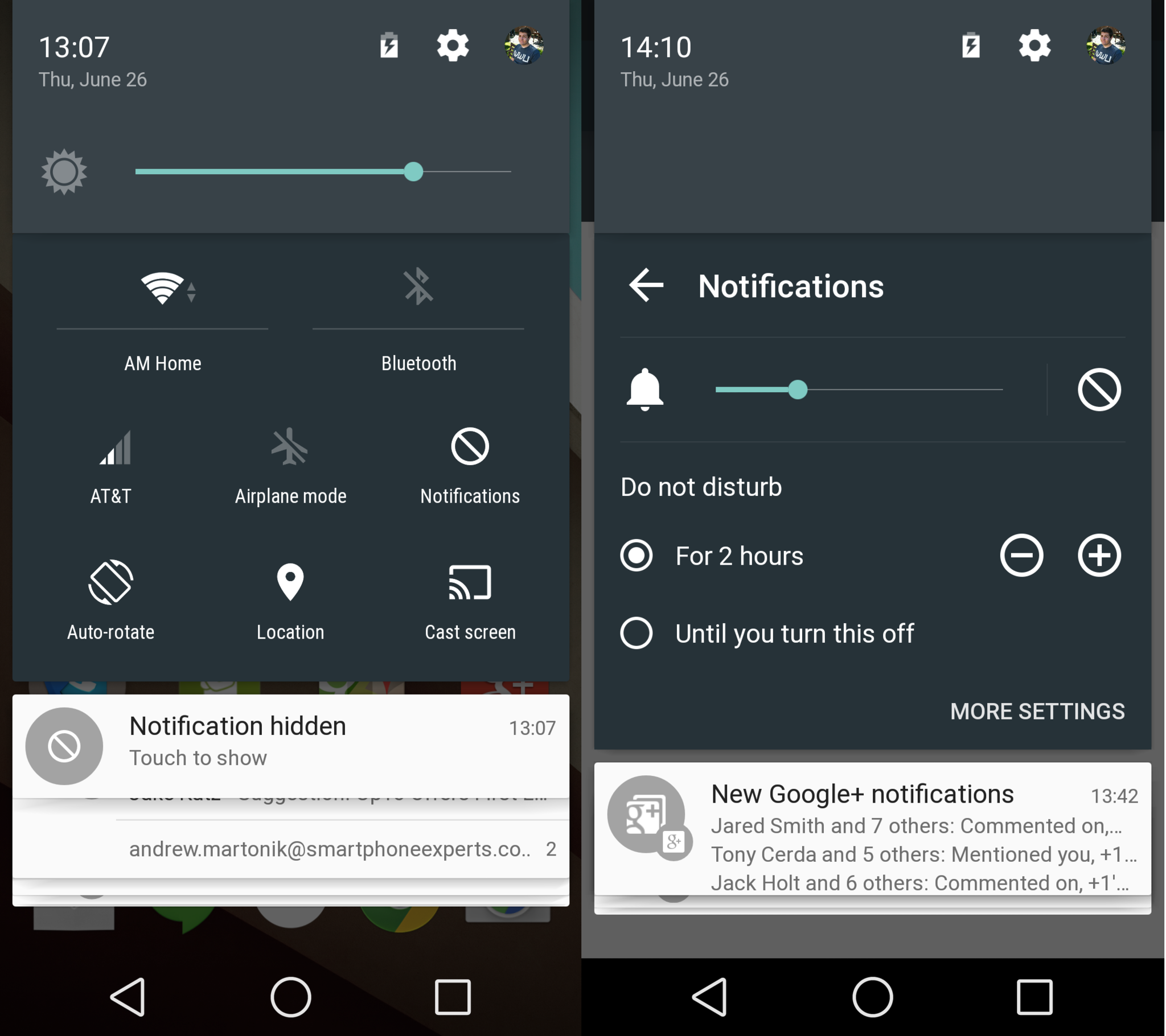
The new Priority mode, which you can turn on with your device's volume rocker, only shows the most important notifications. It's like a Do Not Disturb mode, in which only calls and text messages from select contacts show up.
Multitasking
Multitasking gets a makeover in Lollipop. Doing away with "recent apps," a new menu called Overview shows apps that are running in the background as a stack of cards, instead of the previous list view. The design is similar to what you see when browsing open tabs on Chrome's Android app, and you can scroll through the stack to switch between apps quickly. In addition, Overview shows you multiple tasks within individual apps. For instance, in Gmail, if you're drafting a new email as well as checking your inbox, Overview will have two Gmail tabs shown for these separate tasks.

Device sharing
Android Jelly Bean introduced multiple user profiles for tablets, and now phones can use them too. You can create multiple accounts for yourself, your family and specifically your kids, and control which profile has access to which apps and settings. What's more, if you don't have your phone with you, you can now log in to another Lollipop device to access your contacts, messages and photos.
There's also a guest mode, in which someone can access only certain parts of your phone or tablet and not others. It's a completely self-service model, meaning other people can be recognized as a guest without the owner being present. Once guest mode is activated, only certain apps and content will be made available. Afterward, you can end their guest session and all account activity will be erased.
In addition, you can now pin a screen, meaning that someone can only access one app that's on the screen. This comes in handy when you open a game for your kids and pin the screen so they won't be able to leave the app without you knowing. Screen pinning is also helpful for kiosk displays and in classroom settings.

Quick settings
The swipe-down quick settings are getting a makeover, with new controls. Just swipe down with two fingers from the top of the screen to bring up controls for a flashlight, hotspot, screencasting and more. The Wi-Fi, Bluetooth and Location services toggles have been improved and you can now manually adjust your brightness for certain situations, without turning off automatic brightness.
Security
Android 5.0 Lollipop is Google’s most significant release of Android yet with a whole lot of features debuting with it. Everyone seems to be super excited about the newly upgraded features like support for 64-bit processors, Material Design, the improvements to power management and the switch from the Dalvik RunTime to the Android RunTime, ART, which are touted to make our devices smoother and faster.
But this time around, Google has added some great new security features as well. The first way is the built-in kill switch, also known as Factory Reset Protection. It essentially prevents anyone from wiping and resetting your device if it’s stolen. If thieves can’t factory reset your device, then they won’t be able to successfully resell it.The feature requires a Google ID and password before a phone can be reset, and only works when a phone passcode is enabled.
The second is linked to the first and uses a feature that has been present in Android since 4.0 Ice Cream Sandwich, which is device encryption. Until now, encryption has been an optional security feature that most people only activate if their corporate email account tells them to do so. From Android 5.0, encryption is going to be enabled by default. This gives users another PIN or password to remember but keeps the data on the device much safer from the notorious hackers’ eyes. Without device encryption, a thief could access the information on the device.
Extras
Other additions to Lollipop include a new way to unlock your device using a compatible Bluetooth device, such as the Moto 360. With the personal unlocking feature enabled, your phone will automatically unlock when your Bluetooth device is close by. When you're too far away from it, your PIN, password or pattern lock will switch back on.
Here's a rundown of the other added features in Lollipop:
- OK, Google voice command works when the screen is off on the Nexus 6 and Nexus 9
- A faster setup process for a new device, using NFC to migrate your accounts over by tapping your new phone against your old one.
- Improved multimedia performance, including lower-latency audio and USB audio accessory support.
- Professional photography features, including support for raw images: control settings for the camera lens, sensor and flash; and capturing full-resolution frames at 30 frames per second.
- Easier switching between tap and pay NFC payment apps.
- Print preview and the ability to select a specific page range when printing.
- Improved network handoffs when moving from a Wi-Fi signal to a data signal. For example, you can continue a Wi-Fi call or video chat when you leave your home Wi-Fi and switch to data.
- Your phone will now connect to Wi-Fi if there's a verified Internet connection available, instead of searching for any available network.
- A more power-efficient scanning protocol for searching for Bluetooth low-energy devices and beacons.
- New ART Android runtime, which improves performance and responsiveness in your apps.
- Support for 64-bit devices, like the Nexus 9, and 64-bit native apps.
- Support for more than 68 languages. Google added Basque, Bengali, Burmese, Chinese (Hong Kong), Galician, Icelandic, Kannada, Kyrgyz, Macedonian, Malayalam, Marathi, Nepali, Sinhala, Tamil and Telugu in this release.
10 Best Fitness Apps For Android Wear
After the great success that Android has had on smartphones and tablets, Google decided to enter the budding smartwatch market with its Android Wear platform. While the success of the platform is still under debate, there are already many apps available on the platform.
Apart from bringing you notifications right to your wrist, smartwatches have another great use, that is heath and fitness details. Most of the smartwatch manufacturers pre-install their own fitness apps on their devices but there are some cool third party offerings on the Google Play Store.
So, today we are taking a look at the 10 best health and fitness apps for Android Wear:
1. Endomondo
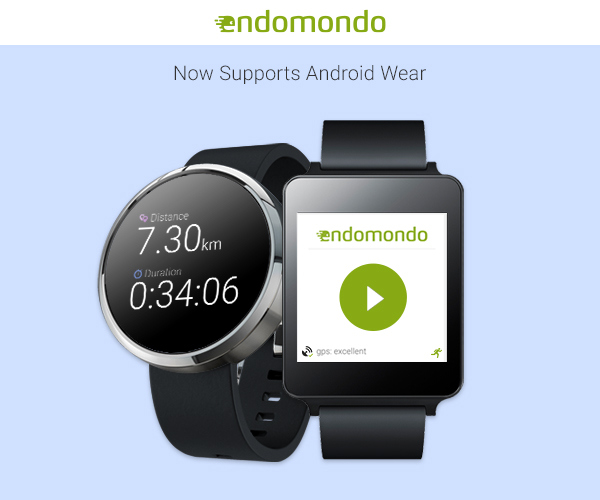
We are pretty sure of your acquaintance with Endomondo, considering it has been a popular fitness app even before the arrival of smartwatches and Android Wear. The developers have made sure to support Android Wear and that makes it even better because you now have the rich features of the app right on your wrist.
Endomondo packs a long list of great features. The health and fitness app lets you track your fitness data, be it from an outdoor workout or indoor. The app also works great with heart rate monitors to bring you your heart rate data. It also analyses your data to bring your a daily diary, split times for each workout and more.
There are also some cool social features, which let you interact with your friends and share your fitness plans. You can use your Android Wear smartwatch to give voice commands and you can customize what data you first see on your wearable. Endomondo comes in a free version and a premium version. The premium version is a subscription based offers at $5.99/month or $29.99/year.
Developer: Endomondo.com
Compatibility: Varies with device
Availability: Endomondo (Free with in-app purchases) – Google Play Store
2. Google Fit
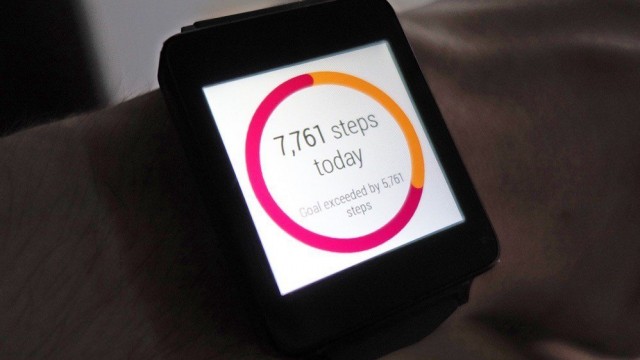
Google launched its Google Fit platform alongside Android Wear last year and since being a Google app, it works very smoothly on Android Wear devices. You can use the Google Fit by pairing your smartwatch to your Android smartphone or tablet or you can even use it as a standalone app on your Android Wear smartwatch.
The app shows you the steps you’ve taken in the last few days on your wearable. There are cards for your heart rate measurements, ability to set goals, see cycling and running data and more. For more advanced features such as maps, advanced graphs, you’ll need to pair your wearable with an Android smartphone.
The best thing about Google Fit is it lets you integrate data from your third party fitness apps as well, resulting in all your health data on one screen, which is pretty cool. As with all the Google apps, Google Fit is available for free on the Play Store.
Developer: Google Inc.
Compatibility: Android 4.0 and up
Availability: Google Fit (Free) – Google Play Store
3. Runtastic Running Pro
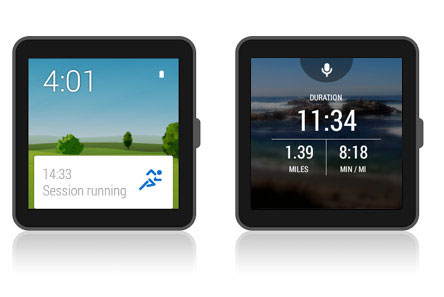
Runtastic Running Pro is another popular fitness app on the Google Play Store and it’s very highly rated and rightly so. Runtastic Running Pro, as the name suggests is a running app on the core but the list of features make you feel at home for every fitness or health data you would need.
You can control the app using your Android Wear smartwatch and use the plethora of features that Runtastic brings. There’s map workouts, workout diary with advanced graphs and statistics, voice coach, live tracking, training plans, goals and way more.
The app is available in a free as well as a paid version but we’ll suggest that paid version because of that great list of features. The paid version is available on the Google Play Store for Rs. 300 and you must definitely check it out.
Developer: Runtastic
Compatibility: Varies with device
Availability: Runtastic Running Pro (Paid) – Google Play Store
4. Strava Running and Cycling
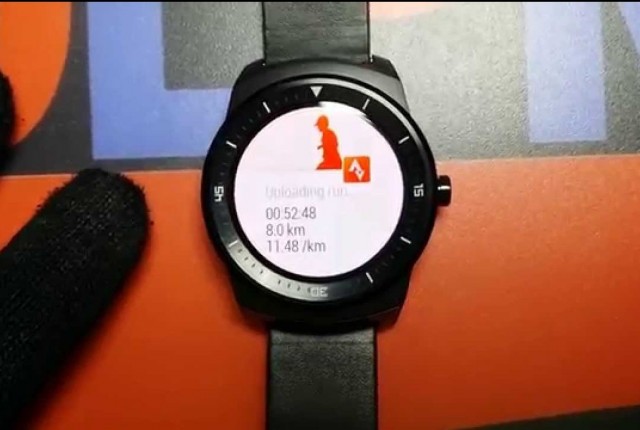
Strava Running and Cycling app is among the most downloaded and highly rated health and fitness apps on the Play Store and with Android Wear support, it gets better. The app has the ability use your smartwatch’s GPS to bring your fitness and health data on the go.
The app brings you key data like distance covered, elevation, speed and the calories you burned. There’s also ability monitor your heart rate, share activities on Facebook and see who’s on the top of fitness leader-boards.
The Strava app is available for free but you can make an in-app purchase to get the premium version, which brings features like ability to set goals, immediate performance results, training videos and more.
Developer: Strava Inc.
Compatibility: Android 4.0 and up
Availability: Strava Running and Cycling (Free with in-app purchases) – Google Play Store
5. MediSafe Meds & Pills Reminder

MediSafe Meds & Pills Reminder app is pretty self explanatory with its name itself but there are some notable features in the app, which make it a must have for fitness and health app users. Along with reminding you, the MediSafe app is a great medication manager as well and thank to Android Wear, you won’t need your phone for those reminders.
The app lets you enter medical details of not only but your family members or friends as well. There’s also the ability to sync to your family member’s devices in real time. Along with medication reminders, the app also tracks your measurements, medication progress reports and more. The app brings reminders and notifications directly to your Android wearable.
The app is available for free on the Google Play Store, so you should check it out if you constantly forget your meds and pills.
Developer: MediSafe
Compatibility: Varies with device
Availability: MediSafe Meds & Pills Reminder (Free) – Google Play Store
6. Cardiograph

As the name suggests, Cardiograph is aimed at people who want their heart rate data on the goo right to their wrist. The app has been specifically designed with Android Wear smartwatches in mind, as it lets you measure and track heart rate data from your wearable, although your smartwatch should pack a heart rate sensor for that. On a smartphone, the app uses the built-in camera or the heart rate sensor (if it’s there) to measure your heart rate.
The app lets you measure your heart rate, tells you the speed of your heart rate and tracks your data over time. There’s ability to monitor heart rate of different people from the same device using profiles. Each profile will feature heart rate data of the individual members.
Developer: MacroPinch
Compatibility: Varies with device
Availability: Cardiograph (Free) – Google Play Store
7. Wear Fitness Personal Trainer
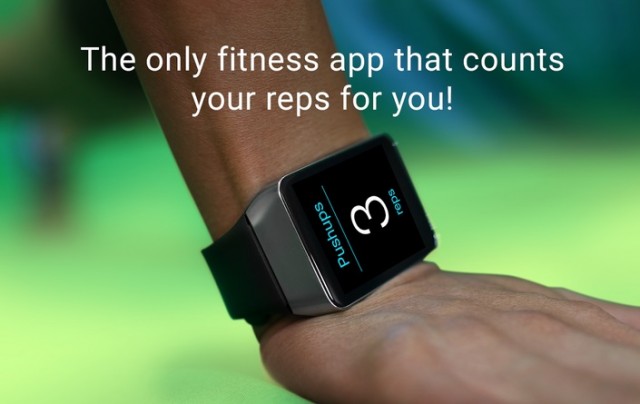
Wear Fitness Personal Trainer, also known as Vimo Fit is a great app if you don’t want to use your smartphone at all. The app is aimed at Android Wear users and all the features can be controlled right from your smartwatch.
The app claims to automatically calculate the calories burned and its special algorithms let it know the exercise you are performing. The app is aimed at people who have a workout routine and as the name suggests, the app acts as a personal trainer. There’s a Guide mode, which analyses your fitness levels and goals to bring you personalized info. The app features motion tracking tech and help from famous YouTube personal trainer, Coach Kozak.
If you need a well featured fitness app, specifically for your Android Wear smartwatch, then Wear Fitness Personal Trainer or VimoFit should be a great choice. Keep in mind though that the app is essentially in a public beta, so there will be inconsistencies in the experience.
Developer: Vimo Labs
Compatibility: Android 4.2 and up
Availability: Wear Fitness Personal Trainer (Free) – Google Play Store
8. Workout for Android Wear
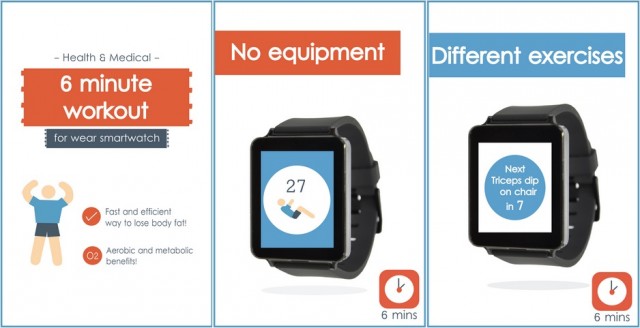
The Workout for Android Wear is a pretty simple and a straightforward app. The app brings you a workout routine of less than 10 minutes everyday to keep you in shape.
The app is based on “The Scientific Workout” routine, which was featured in the American College of Sports Medicine’s Health & Fitness Journal. The workout routine from the app features 12 exercises to get in shape. The app visually represents the exercises along with a countdown timer. The app also offers detailed statistics right to your smartwatch.
Well, the concept is surely pretty neat and anyone not willing to exercise a lot during a hectic day can use the app to keep them fit. Moreover, the app is available for a modest price of Rs. 60.58 on the Google Play Store.
Developer: Blukz
Compatibility: Android 4.3 and up
Availability: Workout for Android Wear (Paid) – Google Play Store
9. Wear Run Pro

Wear Run Pro is a cool running tracker app specifically aimed at Android Wear users. The app tracks your running session’s speed, distance, number of steps and more. The app also shows detailed graphs and statistics to keep track of your progress better. The graphs can be shown in monthly, yearly or weekly views, as per your needs.
The app is available in both free and paid versions but we’ll suggest the paid version because of the extra features it brings and the fact that data cannot be imported to the paid version from the free version of the app. If you need a running tracker app and do not want to use your phone at all, you should check out Wear Run Pro.
Developer: AllAboutEE
Compatibility: Android 4.3 and up
Availability: Wear Run Pro (Paid) – Google Play Store
10. Wear Hydrate Me
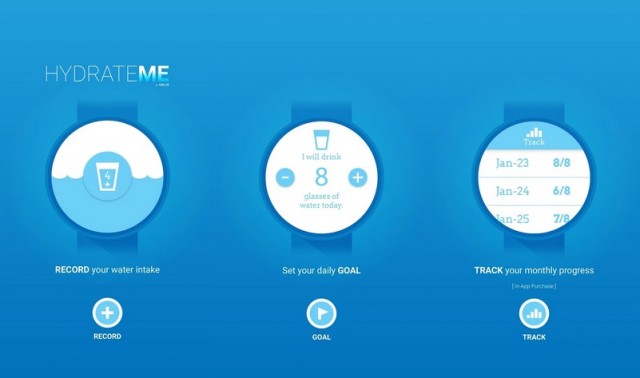
Wear Hydrate me, as the name suggests helps you keep your body hydrated. The cool little app tracks and reminds you to take your daily water intake to keep your fit and healthy.
The app features a simple interface and various features like customizable goals, alarms, daily water intake tracking and more. You can make an in-app purchase to see your monthly progress.
While the feature list might not be very impressive, it’s certainly a useful app and gets the work done. Once you install this app, we are pretty sure you won’t be ever be dehydrated.
Developer: AeusTech Inc.
Compatibility: Android 4.3 and up
Availability: Wear Hydrate Me (Free with in-app purchases) – Google Play Store
The arrival of smartwatches and Android Wear is certainly a boon for Health and Fitness enthusiasts and the developers are surely not disappointing anyone. With everything right on your wrist, the ease of use is tremendous and we are pretty sure the future of health and fitness services is rosy.
50 Useful Google Now Commands That Will Make Your Life Easier
Google Now (alternatively known as ‘Ok Google’) has improved a lot since its launch 3 years ago. It is an intelligent personal assistant for smartphones (also works on the web and Android wear) that not only assist you to search on Google but also helps you perform certain functions on your mobile device, such as setting up an alarm, sending an email, calling someone, etc. It’s not just the wide range of commands makes it the best, but the accuracy with which it performs without any glitch makes it truly an amazing innovation.
In this article, we have come up with a list of 50 useful (and latest) Google Now commands that will help users to make the most of it.
2. Okay Google, ‘What time is it in India?’
3. Okay Google, ‘What is the height of Mount Everest?’
4. Okay Google, ‘Define ambidextrous.’
5. Okay Google, ‘Show me pictures of India Gate’
You can ask as many questions as you want. It’s up to you what do you want to ask. Google Now will come in handy for such search queries as you don’t have to type anything.
Okay Google, ‘Set an alarm for 6 A.M.’
7. Set Reminder
Okay Google, ‘Remind to visit my friend Kapil in the evening.’
8. Set Timer
Okay Google, ‘Set a timer for 1 Minute.’
9. Create an Event
Okay Google, ‘Set Event.’ or alternatively you can say this: Okay Google, ‘Dinner with Kapil, Tomorrow, 9 PM’
11. Okay Google, ‘Convert pounds to KG’ or ‘Convert 175 pounds to KG’
You can convert almost any data from one unit to another. For instance, you can convert Centigrade to Fahrenheit, Miles to Kilometers, etc
13. Okay Google, ‘Multiply 300 into 65′
Or you can also perform complicated mathematical calculations such as Okay Google, ‘Square root of 656′
This will compare nutritional value of both the items.
16. Check if there’s any expectation of rains in the city by asking this: Okay Google, ‘Do I need an umbrella today?’
17. Okay Google, ‘Humidity in New Delhi’
Okay Google, ‘Call Kapil Jindal’
19. Call your relatives
Okay Google, ‘Call Brother’
Just ask Google to call your brother and he’ll ask you who’s your brother. You tell him the name by which you have saved your brother’s contact on your phone. Google will remember this information. And when next time you’d say ‘call brother’, It will call your brother without asking anything.
20. Send a text message
Okay Google, ‘Send a message to Kapil Jindal’
You can narrate the message to Google and it will type for you. Just say yes, when It asks you to send the message.
21. Send an Email
Okay Google, ‘Send an email’
Google will ask, who do you want to send the email, just speak the name of the person, dictate the content of the email and that’s it.
While dictating the message, you can add question mark, commas, full stop etc to never compromise on grammar. Here’s how to do it.
‘How are you question mark Hope we can meet today full-stop’
22. Find emails
Okay Google, ‘Show me my email from Kapil Jindal’
This will fetch all the email conversation between you and the person you named in the query.
23. Send a chat message via Hangouts
Okay Google, ‘Send chat message’
This command will send a message to your Hangout contacts.
24. Post A Tweet
Okay Google, ‘Post to Twitter Loved last episode of Silicon Valley Season 2′
This command will help you tweet your mind out without having to type anything.
You can also use the same command to post anything on your Google Plus account (if you still use it).
Okay Google, ‘Turn on WiFi’
26. Turn on/off Flash light
Okay Google, ‘Turn on Flash light’
27. Open Camera
Okay Google, ‘Take a Picture’ or Okay Google, ‘Take a Selfie’
28. Record Video
Okay Google, ‘Take a Video’
29. Launch any App
Okay Google, ‘Open Instagram’ Or Okay Google, ‘Launch Facebook’
You can open any app using this command.
30. Open any website in the browser
Okay Google, ‘open androgadgets.blogspot.com’
If you wish to open a website in a browser, just dictate the name of the website.
31. Play Music
Okay Google, ‘Play Music.’
This will open the music player and start playing any random song.
32. Adjust Volume
Okay Google, ‘Adjust volume’ or Okay Google, ‘increase volume’
This command will open volume settings for media, ring tone, alarm, etc. In the same way, you can adjust screen brightness.
Okay Google, ‘What is the nearest restaurant’ or Okay Google, ‘What is the nearest post office’
34. Distance between two places
Okay Google, ‘Distance between New Delhi to Jaipur’
35. Navigation direction from Home to Office
Okay Google, ‘Home to Office’
For this command to work properly, we will have to set ‘home’ and ‘workplace’ in the Google Cards->Customize->Places.
36. Get Directions to home from anywhere
Okay Google, ‘How do I get home’
This command will give you directions to your home from wherever you are.
37. Get flight status
Okay Google, ‘What’s the status of delta flight 426′
38. Get details about movies playing in nearby theaters
Okay Google, ‘Jurassic World’
Just type the name of the movie, and Google will fetch you nearest theaters/multiplexes where the movie is playing along with show timings.
39. Find attractions near you
Okay Google, ‘What are attractions in New Delhi’
This command will fetch beautiful tourist destinations to visit in a particular city.
Okay Google, ‘Shazam this song’.
This command will open Shazam, the app listens to lyrics and find exact song matching the lyrics.
Note: You need to make sure that Shazam app is installed on your device.
41. Catch up on your favorite radio
Okay Google, ‘Listen to npr’
This command will open npr app and you can hear to the newscast without even having to open the app manually.
Note: npr one should be installed on your device to make it function properly.
42. Know movies’ release date
Okay Google, ‘Everest release date’
43. Know more about your favorite celebrities
Okay Google, ‘Adam Levine age’, or Okay Google, ‘Amitabh bachchan movies’, etc
Okay Google, ‘Tilt’
45. Do a barrel roll.
Okay Google, ‘Do a barrel roll’
This will rotate the page 360 degrees. It’s fun.
46. Make me a sandwich
Okay Google, ‘Make me a sandwich’
Okay Google, ‘How to say Good night in Chinese’ or Okay Google, ‘How to say I love you in French’
These commands will return the translated version of the sentences. Very handy, right?
48. Search for documents on Google Drive
Okay Google, ‘search for document_name on Drive’
This will run a search query within the Drive and get back to you with required result.
49. Start your Lincoln car with Google Now
Okay Google, ‘start my Lincoln MKZ’
This will magically start the car’s engine without having to physically touch the car. Amazing isn’t it?
Note: MyLincoln Mobile app should be installed in the phone to make sure this command works properly.
50. Control Nest Device with Google Now
Okay Google, ‘Set the temperature to 33 degrees’
51. Your orders on Instacart
Okay Google, ‘show me my order on Instacart’
If you have ordered your food via Instacart, then this command can tell you when your food will arrive.
Note: Make sure your phone has Instacart app installed.
This feature was unveiled by Google in recent I/O 2015 keynote. It is not just a voice search command. It is something exceptionally extraordinary. It is a technology that helps you access Google Now’s voice search capability without having to leave the app that you’re currently using. Not just that, It also brings the personal assistance capability of Google Now to a whole new level.
‘Now on Tap’ will be available in Android M. To access this feature, all you have to do is ‘long press’ the home button and it’ll come in action.
For instance, you get an email from your friend about dining in a particular restaurant nearby and you are curious about how good the restaurant is. All you have to do is tap and hold the home button, and Google Now will fetch you ratings (other necessary information) about the restaurant.
In this article, we have come up with a list of 50 useful (and latest) Google Now commands that will help users to make the most of it.
Your questions as ‘Ok Google’ Commands
1. Okay Google, ‘What is 20% of 80?’2. Okay Google, ‘What time is it in India?’
3. Okay Google, ‘What is the height of Mount Everest?’
5. Okay Google, ‘Show me pictures of India Gate’
You can ask as many questions as you want. It’s up to you what do you want to ask. Google Now will come in handy for such search queries as you don’t have to type anything.
Scheduling Commands
6. Set AlarmOkay Google, ‘Set an alarm for 6 A.M.’
7. Set Reminder
Okay Google, ‘Remind to visit my friend Kapil in the evening.’
8. Set Timer
Okay Google, ‘Set a timer for 1 Minute.’
9. Create an Event
Okay Google, ‘Set Event.’ or alternatively you can say this: Okay Google, ‘Dinner with Kapil, Tomorrow, 9 PM’
Calculation and Conversion Commands
Conversion
10. Okay Google, ‘Convert USD to INR ‘ or ‘Convert 100 USD to INR’11. Okay Google, ‘Convert pounds to KG’ or ‘Convert 175 pounds to KG’
You can convert almost any data from one unit to another. For instance, you can convert Centigrade to Fahrenheit, Miles to Kilometers, etc
Calculation
12. Okay Google, ‘20% of 175′13. Okay Google, ‘Multiply 300 into 65′
Or you can also perform complicated mathematical calculations such as Okay Google, ‘Square root of 656′
Comparison
14. Okay Google, ‘Rice vs Wheat ‘This will compare nutritional value of both the items.
Weather Commands
15. Okay Google, ‘Temperature in New Delhi’ or Okay Google, ‘Temperature in New York’16. Check if there’s any expectation of rains in the city by asking this: Okay Google, ‘Do I need an umbrella today?’
17. Okay Google, ‘Humidity in New Delhi’
Communication Commands
18. Dial a phone numberOkay Google, ‘Call Kapil Jindal’
19. Call your relatives
Okay Google, ‘Call Brother’
Just ask Google to call your brother and he’ll ask you who’s your brother. You tell him the name by which you have saved your brother’s contact on your phone. Google will remember this information. And when next time you’d say ‘call brother’, It will call your brother without asking anything.
20. Send a text message
Okay Google, ‘Send a message to Kapil Jindal’
You can narrate the message to Google and it will type for you. Just say yes, when It asks you to send the message.
21. Send an Email
Okay Google, ‘Send an email’
Google will ask, who do you want to send the email, just speak the name of the person, dictate the content of the email and that’s it.
While dictating the message, you can add question mark, commas, full stop etc to never compromise on grammar. Here’s how to do it.
‘How are you question mark Hope we can meet today full-stop’
22. Find emails
Okay Google, ‘Show me my email from Kapil Jindal’
This will fetch all the email conversation between you and the person you named in the query.
23. Send a chat message via Hangouts
Okay Google, ‘Send chat message’
This command will send a message to your Hangout contacts.
24. Post A Tweet
Okay Google, ‘Post to Twitter Loved last episode of Silicon Valley Season 2′
This command will help you tweet your mind out without having to type anything.
You can also use the same command to post anything on your Google Plus account (if you still use it).
Control Your Device (Smartphone or Wearable device such as Smartwatch)
25. Turn on/off WiFi (or Bluetooth, GPS, Hotspot)Okay Google, ‘Turn on WiFi’
26. Turn on/off Flash light
Okay Google, ‘Turn on Flash light’
27. Open Camera
Okay Google, ‘Take a Picture’ or Okay Google, ‘Take a Selfie’
28. Record Video
Okay Google, ‘Take a Video’
29. Launch any App
Okay Google, ‘Open Instagram’ Or Okay Google, ‘Launch Facebook’
You can open any app using this command.
30. Open any website in the browser
Okay Google, ‘open androgadgets.blogspot.com’
If you wish to open a website in a browser, just dictate the name of the website.
31. Play Music
Okay Google, ‘Play Music.’
This will open the music player and start playing any random song.
32. Adjust Volume
Okay Google, ‘Adjust volume’ or Okay Google, ‘increase volume’
This command will open volume settings for media, ring tone, alarm, etc. In the same way, you can adjust screen brightness.
Navigation Commands
33. Finding nearest placeOkay Google, ‘What is the nearest restaurant’ or Okay Google, ‘What is the nearest post office’
34. Distance between two places
Okay Google, ‘Distance between New Delhi to Jaipur’
35. Navigation direction from Home to Office
Okay Google, ‘Home to Office’
For this command to work properly, we will have to set ‘home’ and ‘workplace’ in the Google Cards->Customize->Places.
36. Get Directions to home from anywhere
Okay Google, ‘How do I get home’
This command will give you directions to your home from wherever you are.
37. Get flight status
Okay Google, ‘What’s the status of delta flight 426′
38. Get details about movies playing in nearby theaters
Okay Google, ‘Jurassic World’
Just type the name of the movie, and Google will fetch you nearest theaters/multiplexes where the movie is playing along with show timings.
39. Find attractions near you
Okay Google, ‘What are attractions in New Delhi’
This command will fetch beautiful tourist destinations to visit in a particular city.
Entertainment
40. Capture new musicOkay Google, ‘Shazam this song’.
This command will open Shazam, the app listens to lyrics and find exact song matching the lyrics.
Note: You need to make sure that Shazam app is installed on your device.
41. Catch up on your favorite radio
Okay Google, ‘Listen to npr’
This command will open npr app and you can hear to the newscast without even having to open the app manually.
Note: npr one should be installed on your device to make it function properly.
42. Know movies’ release date
Okay Google, ‘Everest release date’
43. Know more about your favorite celebrities
Okay Google, ‘Adam Levine age’, or Okay Google, ‘Amitabh bachchan movies’, etc
Google Now Easter Eggs
44. Tilt the screen slightly towards rightOkay Google, ‘Tilt’
45. Do a barrel roll.
Okay Google, ‘Do a barrel roll’
This will rotate the page 360 degrees. It’s fun.
46. Make me a sandwich
Okay Google, ‘Make me a sandwich’
Miscellaneous Commands
47. Translate from language to anotherOkay Google, ‘How to say Good night in Chinese’ or Okay Google, ‘How to say I love you in French’
These commands will return the translated version of the sentences. Very handy, right?
48. Search for documents on Google Drive
Okay Google, ‘search for document_name on Drive’
This will run a search query within the Drive and get back to you with required result.
49. Start your Lincoln car with Google Now
Okay Google, ‘start my Lincoln MKZ’
This will magically start the car’s engine without having to physically touch the car. Amazing isn’t it?
Note: MyLincoln Mobile app should be installed in the phone to make sure this command works properly.
50. Control Nest Device with Google Now
Okay Google, ‘Set the temperature to 33 degrees’
51. Your orders on Instacart
Okay Google, ‘show me my order on Instacart’
If you have ordered your food via Instacart, then this command can tell you when your food will arrive.
Note: Make sure your phone has Instacart app installed.
New (Upcoming)
Now on TapThis feature was unveiled by Google in recent I/O 2015 keynote. It is not just a voice search command. It is something exceptionally extraordinary. It is a technology that helps you access Google Now’s voice search capability without having to leave the app that you’re currently using. Not just that, It also brings the personal assistance capability of Google Now to a whole new level.
‘Now on Tap’ will be available in Android M. To access this feature, all you have to do is ‘long press’ the home button and it’ll come in action.
For instance, you get an email from your friend about dining in a particular restaurant nearby and you are curious about how good the restaurant is. All you have to do is tap and hold the home button, and Google Now will fetch you ratings (other necessary information) about the restaurant.
Subscribe to:
Posts (Atom)